Showing posts with label dashbook. Show all posts

Monday, June 20, 2016

DashBook on Mac OSX


We have many DashBook clients running our DashBook Royalty Pro, designed for Windows, on their Macs.  Usually they use something like Parallels, VMware Fusion, or Boot Camp to host a Windows session, and have DashBook loaded into that.  The initial setup is lengthy if you do not already have Windows on the Mac, but thereafter it works fine.  Another new choice has been to use Amazon WorkSpaces to host a virtual PC online.

However, with improvements in Wine, you can now run DashBook without Windows at all.  You can easily make a Mac app of DashBook with the following:

[Video of this process here.]


Get WineBottler:  http://winebottler.kronenberg.org/  I chose the latest v1.8, not v1.6.
[Note that Tiger and Leopard require an older version, 1.4.1,  plus X11.  PowerPC?  You've got to be kidding!  This is for Intel-based CPUs only.]

Copy both Wine and WineBottler to your Applications folder.  This may need a security change to allow non Apple Store apps.  [GateKeeper security info: http://www.cultofmac.com/224876/safely-install-non-mac-app-store-apps-on-your-mac-os-x-tips/]

Download our DashBook trial from our http://www.DashBook.com website.  This will be a setup.exe saved to your Downloads folder.  Do not run this setup.exe on your Mac, but we will point to it in WineBottler.

Run WineBottler; switch to Advanced.  See the screen image below for the choices that worked for us, on El Capitan.  You also need to click and choose the following WineTricks:  (use the search field to quickly find each)
 dotnet40 jet40 mdac28 ie8 (not the ie8UpdateBlahBlah)

Note in the image below that we clicked to "Hide most dialogs".  This makes things work smoother.

(click to enlarge)

Then you click Install to make the package.  You will only need to go through the DashBook Install questions, as the others will be automatic.  Choose to not install shortcuts, and choose not to run DashBook at the end.  When finished, WineBottler will ask for which .exe to run; choose the Dashbook.exe at the top of the list, as seen here:
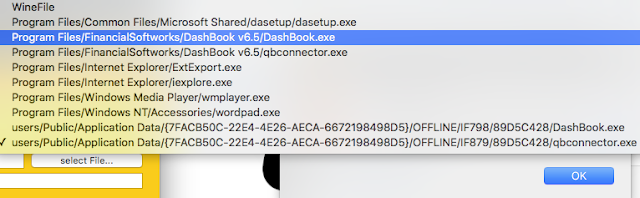


That's it! The first run will blink and give some rundll32 error, but all works after that.  Just avoid clicking the first icon in DashBook that turns off/on the dashboard, as that unfortunately terminates the session.

Once you have finished the above process, you do not need to do it again.  Just click on the DashBook app that you made, whenever you want to run DashBook.

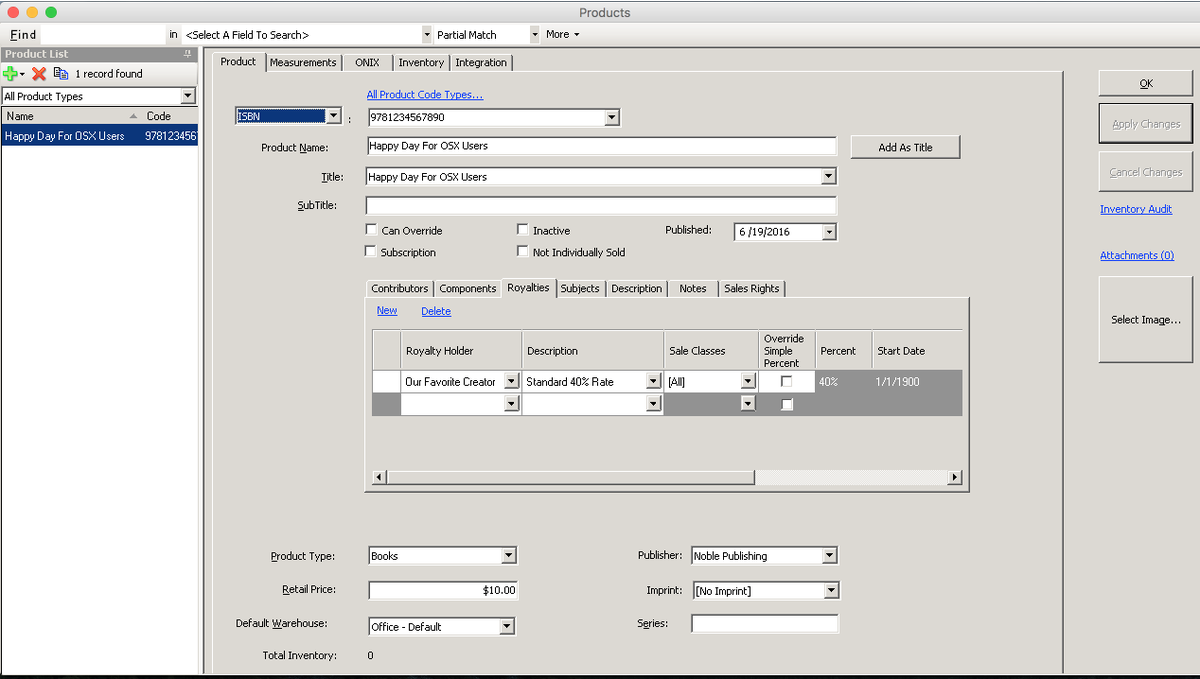
Here is DashBook running on Mac OSX, without Windows:

Enjoy!


Thursday, November 8, 2012

DashBook Pro Version 5.1

We are pleased (and relieved) to announce the release of DashBook version 5.1!  We have been working on this one since prior to the release of v5.0 in the spring, and thank you for all of your help.  Many of our clients have worked intimately with us, and have been enjoying some of these changes already.

What's new?  Many things, but here are some highlights:


The biggest change for v5.1 is better support for multi-users.  With this came very significant internal changes, one of which results in really fast order deletion, as an example.

Another huge addition is that you can now have default royalty arrangements, so simply linking a royalty holder to a product can automatically connect a default royalty, saving time.
Our optional QuickBooks Integration Module has major additions.  It now has an ability to start with an empty QuickBooks company file and batch create all of the DashBook products into it. You can now retrieve QuickBooks customers and products to create those within DashBook, and directly batch import a range of QuickBooks invoices to create corresponding DashBook orders.  As before, these communicate directly with QuickBooks, so no need for interim disk files.
With the improvements in multi-user functionality, we are also presenting new multi-user pricing.  You can now upgrade to a multi-user system in smaller bites, so now is a great time to add an extra user to your system.

We have done a lot of work to make DashBook better, but there are always more things to do.  We are available to customize your system for the perfect solution for you (add a feature, customize a report, make anything faster, etc.), which is how many of these changes came into being.  Although our list of ideas seem infinite, we like your direction.

Thank you very much for your support!

Cheers,
The DashBook Team
www.DashBook.com

Thursday, November 3, 2011

PayPal discontinues MassPay

Normally when someone who is evaluating DashBook asks why they cannot send out royalty payments directly via PayPal through our software, it is because they simply did not set it up.  It is a very quick and easy procedure consisting of logging in to one's PayPal account and requesting API signature information which provides the credentials that DashBook needs to communicate on behalf of their business account.

PayPal's MassPay does not work with personal accounts, so an upgrade to Business or Premier might be required.  Why does DashBook use PayPal's MassPay system for electronic payments?  MassPay is a great way to handle paying a handful or hundreds of royalty holders at once.  It also fits nicely in the business model, as the sender pays a fee that is comparable to or cheaper than mailing costs, and the recipient receives the full funds without additional fees removed.  Other methods of PayPal payments would have the royalty holder receive less than the royalties due.

PayPal MassPay has been a great system for DashBook users, who are primarily book publishers and music labels right now, although of course our system handles many more businesses interested in tracking royalties and licenses.  It is very simple and easy.  One screen shows all of the royalty amounts owed for the period chosen, and one click can fire off all of the payments and record that information into DashBook for account balance purposes.  Life is good.

So when one of our new book publishers started asking about her inability to use PayPal, the answer seemed obvious.  "Go to this PayPal website page to get your account information; paste it here in DashBook."  Ah, but not so easy this time! Her PayPal system didn't have MassPay activated, and calls to PayPal resulted in her telling us that PayPal has discontinued MassPay for all but huge corporations.

What?  Isn't PayPal for the little guys who don't already have large systems setup?  If your company is already large, wouldn't you have EFTS (Electronic Funds Transfer - like direct deposit) to handle all your needs?

Well, after spending hours on the phone with various PayPal personnel, it looks bad.  Whether their decision is due to "abuses" or "high risk" (their terms), they have indeed disabled MassPay from the majority of their accounts while leaving it intact for a handful of large multinational corporations.

This is huge news.  Why isn't there outrage everywhere today?  Maybe because they did this months ago, and perhaps our clients that use this feature only pay quarterly or semi-annually, etc.
[Edit:  It appears those using it regularly have been grandfathered.]

What did PayPal recommend that we do?  Trash our MassPay API program code, and rewrite it for their alternative Adaptive Payments style, which puts the burden on the recipient for the fees -- and those fees are much higher than the $1 USD cap that MassPay has.

If you've used MassPay, contact PayPal immediately to see if they will re-instate your account. [Edit: First go to your account, select Send Payment, select MassPay, and see if yours is disabled.]

If you have experiences about this, please reply to this post so that we can all learn.  Unfortunately, change is not always for the better.

Thursday, September 1, 2011

QuickBooks for royalty accounting

QuickBooks is a useful program for general accounting, but is inadequate for handling the royalty calculation needs of businesses like book publishers, record labels, music publishers, etc.  That is why royalty software such as DashBook is so important.  Royalty accounting can be so much easier with a great system.

On the other hand, while DashBook makes handling royalties very easy (import sales reports, email or upload royalty reports!), it does not handle all of the general accounting tasks.

Obviously, putting these two together makes sense.  Already, one can generate sales reports from QuickBooks including product codes (ISBN, ISRC, SKU, etc.), quantity sold, and net received, and import those transactions into DashBook.

But we can always do better.  One of our clients is growing so rapidly and has had such positive experiences with our DashBook team, that they've asked for our help.  After discussions and consideration, we've turned the problem upside down to create a fantastic solution for them.  Now they can continue their great growth, supported by an even better system.  And they are pretty excited!

What can we do for you?


Thursday, February 4, 2010

Music royalties for publishers and artists (percentage of sale price)

Two blog entries ago, I wrote an article about using DashBook for U.S. mechanical rights interest calculations. With a little setup, DashBook makes this calculation automatic as you continue to sell, even if the rates change.

This time, I'll briefly discuss a very similar feature now -- the ability to specify a royalty on a track as a percentage of the sale amount. By setting up the royalty agreement as a percentage of the sale price, typically of net sales, DashBook will calculate the royalties using this percentage each time that this track is directly sold.

But what if the album is sold?

Well, DashBook now has the ability to use the price of the album (gross or net) divided by the number of tracks on that album -- automatically!

To see how to enter album products that contain tracks, I recommend that previous post.

There is one more thing about handling music or other royalties that I don't recall writing about:  advances and recoupments.  That'll be the subject of a future article, but feel free to email us if you'd like to know more about it now.

And don't forget that you can download a free trial of DashBook here.

Friday, December 4, 2009

Automating publishing with a barcode scanner

We continue to receive compliments on our DashBook royalty software from companies seeking to improve the management of their publishing businesses. Sometimes these companies have little or nothing to do with our original market of small book publishers, but due to DashBook's amazing feature set and ease of use, they realize that it is the best product for them.

Recently we were asked about barcode support for an organization needing to track their products from their warehouses. DashBook already supports adding to and shipping from multiple warehouses, so that is not an issue. But what about barcode scanners?

As it turns out, barcode scanners are little more than machines that read code and type what they see as if a human had typed it using the keyboard. Simply plug in a USB barcode scanner, and the operating system will detect it and configure itself to use it. Here are a couple of things I played with using our new barcode scanner:

Within DashBook, I created a new order. Because our Simple order style does not show product codes, I clicked the Advanced tab to go to Order Detail. I clicked into the ISBN/Product Code field, grabbed a book off of my shelf, and scanned it. DashBook immediately created an order line with that product, filling out the price and presumed quantity of 1, which can readily be changed. Because the scanner automatically added a cr/lf (carriage return/linefeed), DashBook was ready for the next book. Just by scanning one book after another, an entire order can be filled.

My next test was to go to the product section of DashBook to create products. I just clicked the + sign to create a product, and DashBook popped open an ISBN window before the main product form. I then scanned multiple books, which automatically typed their ISBNs into this window -- all in a nice column because of the "returns" at the end of each code. When I pressed the OK button on that window, DashBook looked up these ISBN codes on the internet, and created each of the product records, automatically filling in the book titles, summary description, and authors.

Wow. I love automation!

Monday, October 29, 2007

Dashbook has a website!

We now have a website for our program, www.dashbook.com. Although we also have download availability from our new site, we are still refining the program before launching our beta.

The home page of our website has a snapshot of our Dashboard, which is basically a view of key performance indicators. At this time, our Dashboard shows four reports or charts:

Payments Due (Customers, amounts, and due dates)
Aging Receivables (as a pie chart)
Best Sellers YTD (pie chart of what's hot)
Re-Order Notice (inventory chart)

Obviously a Best Sellers chart has little value to a single product publisher, and would be too cramped for a book publisher of over a hundred titles. There is no doubt that customizations will become important.

For our beta version, this Dashboard has no user interface to change which reports are shown. However, the information for the Dashboard is contained in an html file which savvy users can customize.